
justfile
Use when writing Justfiles to understand the latest syntax, features, and best practices
"Use when writing Justfiles to understand the latest syntax, features, and best practices"
Writing Justfiles
The below readme is pulled from: https://github.com/casey/just/blob/master/README.md
It fully documents the Justfile syntax and system.
just
just is a handy way to save and run project-specific commands.
This readme is also available as a book. The
book reflects the latest release, whereas the
readme on GitHub
reflects latest master.
(中文文档在 这里,
快看过来!)
Commands, called recipes, are stored in a file called justfile with syntax
inspired by make:
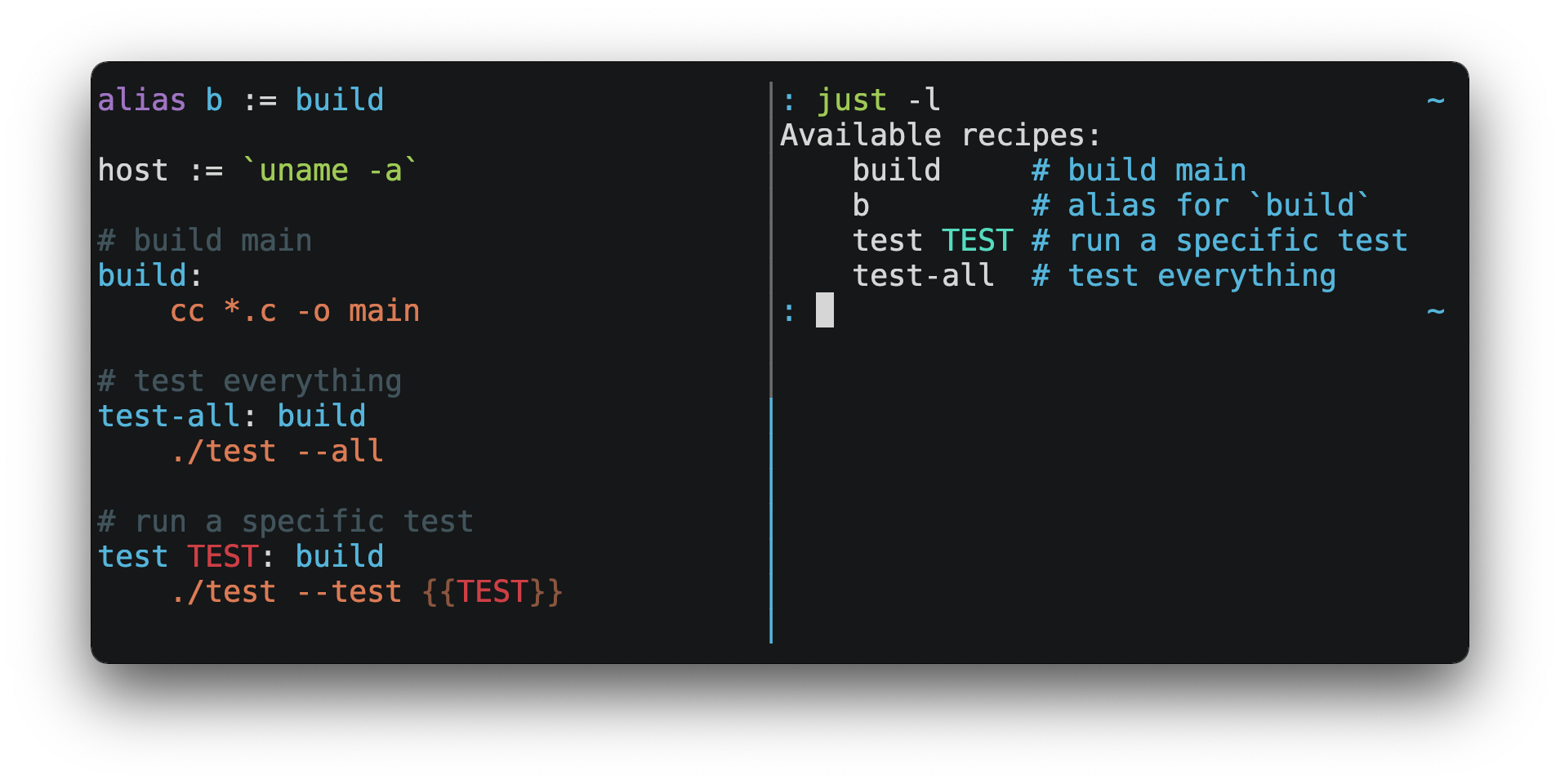
You can then run them with just RECIPE:
$ just test-all
cc *.c -o main
./test --all
Yay, all your tests passed!
just has a ton of useful features, and many improvements over make:
justis a command runner, not a build system, so it avoids much of
make's complexity and idiosyncrasies.
No need for.PHONYrecipes!- Linux, MacOS, Windows, and other reasonable unices are supported with no
additional dependencies. (Although if your system doesn't have ansh,
you'll need to choose a different shell.) - Errors are specific and informative, and syntax errors are reported along
with their source context. - Recipes can accept command line arguments.
- Wherever possible, errors are resolved statically. Unknown recipes and
circular dependencies are reported before anything runs. justloads.envfiles, making it easy to populate
environment variables.- Recipes can be listed from the command line.
- Command line completion scripts are
available for most popular shells. - Recipes can be written in
arbitrary languages, like Python or NodeJS. justcan be invoked from any subdirectory, not just the directory that
contains thejustfile.- And much more!
If you need help with just please feel free to open an issue or ping me on
Discord. Feature requests and bug reports are
always welcome!
Quick Start
See the installation section for how to install just on your computer. Try
running just --version to make sure that it's installed correctly.
For an overview of the syntax, check out
this cheatsheet.
Once just is installed and working, create a file named justfile in the
root of your project with the following contents:
recipe-name:
  echo 'This is a recipe!'

# this is a comment
another-recipe:
  @echo 'This is another recipe.'
When you invoke just it looks for file justfile in the current directory
and upwards, so you can invoke it from any subdirectory of your project.
The search for a justfile is case insensitive, so any case, like Justfile,
JUSTFILE, or JuStFiLe, will work. just will also look for files with the
name .justfile, in case you'd like to hide a justfile.
Running just with no arguments runs the first recipe in the justfile:
$ just
echo 'This is a recipe!'
This is a recipe!
One or more arguments specify the recipe(s) to run:
$ just another-recipe
This is another recipe.
just prints each command to standard error before running it, which is why
echo 'This is a recipe!' was printed. This is suppressed for lines starting
with @, which is why echo 'This is another recipe.' was not printed.
Recipes stop running if a command fails. Here cargo publish will only run if
cargo test succeeds:
publish:
  cargo test
  # tests passed, time to publish!
  cargo publish
Recipes can depend on other recipes. Here the test recipe depends on the
build recipe, so build will run before test:
build:
  cc main.c foo.c bar.c -o main

test: build
  ./test

sloc:
  @echo "`wc -l *.c` lines of code"
$ just test
cc main.c foo.c bar.c -o main
./test
testing… all tests passed!
Recipes without dependencies will run in the order they're given on the command
line:
$ just build sloc
cc main.c foo.c bar.c -o main
1337 lines of code
Dependencies will always run first, even if they are passed after a recipe that
depends on them:
$ just test build
cc main.c foo.c bar.c -o main
./test
testing… all tests passed!
Recipes may depend on recipes in submodules:
mod foo

baz: foo::bar
Examples
A variety of justfiles can be found in the
examples directory and on
GitHub.
Features
The Default Recipe
When just is invoked without a recipe, it runs the recipe with the
[default] attribute, or the first recipe in the justfile if no recipe has
the [default] attribute.
This recipe might be the most frequently run command in the project, like
running the tests:
test:
  cargo test
You can also use dependencies to run multiple recipes by default:
default: lint build test

build:
  echo Building…

test:
  echo Testing…

lint:
  echo Linting…
If no recipe makes sense as the default recipe, you can add a recipe to the
beginning of your justfile that lists the available recipes:
default:
  just --list
Listing Available Recipes
Recipes can be listed in alphabetical order with just --list:
$ just --list
Available recipes:
    build
    test
    deploy
    lint
Recipes in submodules can be listed with just --list PATH,
where PATH is a space- or ::-separated module path:
$ cat justfile
mod foo
$ cat foo.just
mod bar
$ cat bar.just
baz:
$ just --list foo bar
Available recipes:
    baz
$ just --list foo::bar
Available recipes:
    baz
just --summary is more concise:
$ just --summary
build test deploy lint
Pass --unsorted to print recipes in the order they appear in the justfile:
test:
  echo 'Testing!'

build:
  echo 'Building!'
$ just --list --unsorted
Available recipes:
    test
    build
$ just --summary --unsorted
test build
If you'd like just to default to listing the recipes in the justfile, you
can use this as your default recipe:
default:
  @just --list
Note that you may need to add --justfile {{justfile()}} to the line above.
Without it, if you executed just -f /some/distant/justfile -d . or
just -f ./non-standard-justfile, the plain just --list inside the recipe
would not necessarily use the file you provided. It would try to find a
justfile in your current path, maybe even resulting in a No justfile found
error.
The heading text can be customized with --list-heading:
$ just --list --list-heading $'Cool stuff…\n'
Cool stuff…
    test
    build
And the indentation can be customized with --list-prefix:
$ just --list --list-prefix ····
Available recipes:
····test
····build
The argument to --list-heading replaces both the heading and the newline
following it, so it should contain a newline if non-empty. It works this way so
you can suppress the heading line entirely by passing the empty string:
$ just --list --list-heading ''
    test
    build
Invoking Multiple Recipes
Multiple recipes may be invoked on the command line at once:
build:
  make web

serve:
  python3 -m http.server -d out 8000
$ just build serve
make web
python3 -m http.server -d out 8000
Keep in mind that recipes with parameters will swallow arguments, even if they
match the names of other recipes:
build project:
  make {{project}}

serve:
  python3 -m http.server -d out 8000
$ just build serve
make: *** No rule to make target `serve'.  Stop.
The --one flag can be used to restrict command-line invocations to a single
recipe:
$ just --one build serve
error: Expected 1 command-line recipe invocation but found 2.
Working Directory
By default, recipes run with the working directory set to the directory that
contains the justfile.
The [no-cd] attribute can be used to make recipes run with the working
directory set to directory in which just was invoked.
@foo:
  pwd

[no-cd]
@bar:
  pwd
$ cd subdir
$ just foo
/
$ just bar
/subdir
You can override the working directory for all recipes with
set working-directory := '…':
set working-directory := 'bar'

@foo:
  pwd
$ pwd
/home/bob
$ just foo
/home/bob/bar
You can override the working directory for a specific recipe with the
working-directory attribute1.38.0:
[working-directory: 'bar']
@foo:
  pwd
$ pwd
/home/bob
$ just foo
/home/bob/bar
The argument to the working-directory setting or working-directory
attribute may be absolute or relative. If it is relative it is interpreted
relative to the default working directory.
Aliases
Aliases allow recipes to be invoked on the command line with alternative names:
alias b := build

build:
  echo 'Building!'
$ just b
echo 'Building!'
Building!
The target of an alias may be a recipe in a submodule:
mod foo

alias baz := foo::bar
Settings
Settings control interpretation and execution. Each setting may be specified at
most once, anywhere in the justfile.
For example:
set shell := ["zsh", "-cu"]

foo:
  # this line will be run as `zsh -cu 'ls **/*.txt'`
  ls **/*.txt
Table of Settings
| Name | Value | Default | Description |
|---|---|---|---|
allow-duplicate-recipes |
boolean | false |
Allow recipes appearing later in a justfile to override earlier recipes with the same name. |
allow-duplicate-variables |
boolean | false |
Allow variables appearing later in a justfile to override earlier variables with the same name. |
dotenv-filename |
string | - | Load a .env file with a custom name, if present. |
dotenv-load |
boolean | false |
Load a .env file, if present. |
dotenv-override |
boolean | false |
Override existing environment variables with values from the .env file. |
dotenv-path |
string | - | Load a .env file from a custom path and error if not present. Overrides dotenv-filename. |
dotenv-required |
boolean | false |
Error if a .env file isn't found. |
export |
boolean | false |
Export all variables as environment variables. |
fallback |
boolean | false |
Search justfile in parent directory if the first recipe on the command line is not found. |
ignore-comments |
boolean | false |
Ignore recipe lines beginning with #. |
positional-arguments |
boolean | false |
Pass positional arguments. |
quiet |
boolean | false |
Disable echoing recipe lines before executing. |
script-interpreter1.33.0 |
[COMMAND, ARGS…] |
['sh', '-eu'] |
Set command used to invoke recipes with empty [script] attribute. |
shell |
[COMMAND, ARGS…] |
- | Set command used to invoke recipes and evaluate backticks. |
tempdir |
string | - | Create temporary directories in tempdir instead of the system default temporary directory. |
unstable1.31.0 |
boolean | false |
Enable unstable features. |
windows-powershell |
boolean | false |
Use PowerShell on Windows as default shell. (Deprecated. Use windows-shell instead. |
windows-shell |
[COMMAND, ARGS…] |
- | Set the command used to invoke recipes and evaluate backticks. |
working-directory1.33.0 |
string | - | Set the working directory for recipes and backticks, relative to the default working directory. |
Boolean settings can be written as:
set NAME
Which is equivalent to:
set NAME := true
Non-boolean settings can be set to both strings and
expressions.1.46.0
However, because settings affect the behavior of backticks and many functions,
those expressions may not contain backticks or function calls, directly or
transitively via reference.
Allow Duplicate Recipes
If allow-duplicate-recipes is set to true, defining multiple recipes with
the same name is not an error and the last definition is used. Defaults to
false.
set allow-duplicate-recipes

@foo:
  echo foo

@foo:
  echo bar
$ just foo
bar
Allow Duplicate Variables
If allow-duplicate-variables is set to true, defining multiple variables
with the same name is not an error and the last definition is used. Defaults to
false.
set allow-duplicate-variables

a := "foo"
a := "bar"

@foo:
  echo {{a}}
$ just foo
bar
Dotenv Settings
If any of dotenv-load, dotenv-filename, dotenv-override, dotenv-path,
or dotenv-required are set, just will try to load environment variables
from a file.
If dotenv-path is set, just will look for a file at the given path, which
may be absolute, or relative to the working directory.
The command-line option --dotenv-path, short form -E, can be used to set or
override dotenv-path at runtime.
If dotenv-filename is set just will look for a file at the given path,
relative to the working directory and each of its ancestors.
If dotenv-filename is not set, but dotenv-load or dotenv-required are
set, just will look for a file named .env, relative to the working directory
and each of its ancestors.
dotenv-filename and dotenv-path are similar, but dotenv-path is only
checked relative to the working directory, whereas dotenv-filename is checked
relative to the working directory and each of its ancestors.
It is not an error if an environment file is not found, unless
dotenv-required is set.
The loaded variables are environment variables, not just variables, and so
must be accessed using $VARIABLE_NAME in recipes and backticks.
If dotenv-override is set, variables from the environment file will override
existing environment variables.
For example, if your .env file contains:
# a comment, will be ignored
DATABASE_ADDRESS=localhost:6379
SERVER_PORT=1337
And your justfile contains:
set dotenv-load

serve:
  @echo "Starting server with database $DATABASE_ADDRESS on port $SERVER_PORT…"
  ./server --database $DATABASE_ADDRESS --port $SERVER_PORT
just serve will output:
$ just serve
Starting server with database localhost:6379 on port 1337…
./server --database $DATABASE_ADDRESS --port $SERVER_PORT
Export
The export setting causes all just variables to be exported as environment
variables. Defaults to false.
set export

a := "hello"

@foo b:
  echo $a
  echo $b
$ just foo goodbye
hello
goodbye
Positional Arguments
If positional-arguments is true, recipe arguments will be passed as
positional arguments to commands. For linewise recipes, argument $0 will be
the name of the recipe.
For example, running this recipe:
set positional-arguments

@foo bar:
  echo $0
  echo $1
Will produce the following output:
$ just foo hello
foo
hello
When using an sh-compatible shell, such as bash or zsh, $@ expands to
the positional arguments given to the recipe, starting from one. When used
within double quotes as "$@", arguments including whitespace will be passed
on as if they were double-quoted. That is, "$@" is equivalent to "$1" "$2"…
When there are no positional parameters, "$@" and $@ expand to nothing
(i.e., they are removed).
This example recipe will print arguments one by one on separate lines:
set positional-arguments

@test *args='':
  bash -c 'while (( "$#" )); do echo - $1; shift; done' -- "$@"
Running it with two arguments:
$ just test foo "bar baz"
- foo
- bar baz
Positional arguments may also be turned on on a per-recipe basis with the
[positional-arguments] attribute1.29.0:
[positional-arguments]
@foo bar:
  echo $0
  echo $1
Note that PowerShell does not handle positional arguments in the same way as
other shells, so turning on positional arguments will likely break recipes that
use PowerShell.
If using PowerShell 7.4 or better, the -CommandWithArgs flag will make
positional arguments work as expected:
set shell := ['pwsh.exe', '-CommandWithArgs']
set positional-arguments

print-args a b c:
  Write-Output @($args[1..($args.Count - 1)])
Shell
The shell setting controls the command used to invoke recipe lines and
backticks. Shebang recipes are unaffected. The default shell is sh -cu.
# use python3 to execute recipe lines and backticks
set shell := ["python3", "-c"]

# use print to capture result of evaluation
foos := `print("foo" * 4)`

foo:
  print("Snake snake snake snake.")
  print("{{foos}}")
just passes the command to be executed as an argument. Many shells will need
an additional flag, often -c, to make them evaluate the first argument.
Windows Shell
just uses sh on Windows by default. To use a different shell on Windows,
use windows-shell:
set windows-shell := ["powershell.exe", "-NoLogo", "-Command"]

hello:
  Write-Host "Hello, world!"
See
powershell.just
for a justfile that uses PowerShell on all platforms.
Windows PowerShell
set windows-powershell uses the legacy powershell.exe binary, and is no
longer recommended. See the windows-shell setting above for a more flexible
way to control which shell is used on Windows.
just uses sh on Windows by default. To use powershell.exe instead, set
windows-powershell to true.
set windows-powershell := true

hello:
  Write-Host "Hello, world!"
Python 3
set shell := ["python3", "-c"]
Bash
set shell := ["bash", "-uc"]
Z Shell
set shell := ["zsh", "-uc"]
Fish
set shell := ["fish", "-c"]
Nushell
set shell := ["nu", "-c"]
If you want to change the default table mode to light:
set shell := ['nu', '-m', 'light', '-c']
Nushell was written in Rust, and has
cross-platform support for Windows / macOS and Linux.
Documentation Comments
Comments immediately preceding a recipe will appear in just --list:
# build stuff
build:
  ./bin/build

# test stuff
test:
  ./bin/test
$ just --list
Available recipes:
    build # build stuff
    test # test stuff
The [doc] attribute can be used to set or suppress a recipe's doc comment:
# This comment won't appear
[doc('Build stuff')]
build:
  ./bin/build

# This one won't either
[doc]
test:
  ./bin/test
$ just --list
Available recipes:
    build # Build stuff
    test
Expressions and Substitutions
Various operators and function calls are supported in expressions, which may be
used in assignments, default recipe arguments, and inside recipe body {{…}}
substitutions.
tmpdir  := `mktemp -d`
version := "0.2.7"
tardir  := tmpdir / "awesomesauce-" + version
tarball := tardir + ".tar.gz"
config  := quote(config_dir() / ".project-config")

publish:
  rm -f {{tarball}}
  mkdir {{tardir}}
  cp README.md *.c {{ config }} {{tardir}}
  tar zcvf {{tarball}} {{tardir}}
  scp {{tarball}} me@server.com:release/
  rm -rf {{tarball}} {{tardir}}
Concatenation
The + operator returns the left-hand argument concatenated with the
right-hand argument:
foobar := 'foo' + 'bar'
Logical Operators
The logical operators && and || can be used to coalesce string
values1.37.0, similar to Python's and and or. These operators
consider the empty string '' to be false, and all other strings to be true.
These operators are currently unstable.
The && operator returns the empty string if the left-hand argument is the
empty string, otherwise it returns the right-hand argument:
foo := '' && 'goodbye'      # ''
bar := 'hello' && 'goodbye' # 'goodbye'
The || operator returns the left-hand argument if it is non-empty, otherwise
it returns the right-hand argument:
foo := '' || 'goodbye'      # 'goodbye'
bar := 'hello' || 'goodbye' # 'hello'
Joining Paths
The / operator can be used to join two strings with a slash:
foo := "a" / "b"
$ just --evaluate foo
a/b
Note that a / is added even if one is already present:
foo := "a/"
bar := foo / "b"
$ just --evaluate bar
a//b
Absolute paths can also be constructed1.5.0:
foo := / "b"
$ just --evaluate foo
/b
The / operator uses the / character, even on Windows. Thus, using the /
operator should be avoided with paths that use universal naming convention
(UNC), i.e., those that start with \?, since forward slashes are not
supported with UNC paths.
Escaping {{
To write a recipe containing {{, use {{{{:
braces:
  echo 'I {{{{LOVE}} curly braces!'
(An unmatched }} is ignored, so it doesn't need to be escaped.)
Another option is to put all the text you'd like to escape inside of an
interpolation:
braces:
  echo '{{'I {{LOVE}} curly braces!'}}'
Yet another option is to use {{ "{{" }}:
braces:
  echo 'I {{ "{{" }}LOVE}} curly braces!'
Strings
'single', "double", and '''triple''' quoted string literals are
supported. Unlike in recipe bodies, {{…}} interpolations are not supported
inside strings.
Double-quoted strings support escape sequences:
carriage-return   := "\r"
double-quote      := "\""
newline           := "\n"
no-newline        := "\
"
slash             := "\\"
tab               := "\t"
unicode-codepoint := "\u{1F916}"
$ just --evaluate
"arriage-return   := "
double-quote      := """
newline           := "
"
no-newline        := ""
slash             := "\"
tab               := "     "
unicode-codepoint := "🤖"
The unicode character escape sequence \u{…}1.36.0 accepts up to
six hex digits.
Strings may contain line breaks:
single := '
hello
'

double := "
goodbye
"
Single-quoted strings do not recognize escape sequences:
escapes := '\t\n\r\"\\'
$ just --evaluate
escapes := "\t\n\r\"\\"
Indented versions of both single- and double-quoted strings, delimited by
triple single- or double-quotes, are supported. Indented string lines are
stripped of a leading line break, and leading whitespace common to all
non-blank lines:
# this string will evaluate to `foo\nbar\n`
x := '''
  foo
  bar
'''

# this string will evaluate to `abc\n  wuv\nxyz\n`
y := """
  abc
    wuv
  xyz
"""
Similar to unindented strings, indented double-quoted strings process escape
sequences, and indented single-quoted strings ignore escape sequences. Escape
sequence processing takes place after unindentation. The unindentation
algorithm does not take escape-sequence produced whitespace or newlines into
account.
Shell-expanded strings
Strings prefixed with x are shell expanded1.27.0:
foobar := x'~/$FOO/${BAR}'
| Value | Replacement |
|---|---|
$VAR |
value of environment variable VAR |
${VAR} |
value of environment variable VAR |
${VAR:-DEFAULT} |
value of environment variable VAR, or DEFAULT if VAR is not set |
Leading ~ |
path to current user's home directory |
Leading ~USER |
path to USER's home directory |
This expansion is performed at compile time, so variables from .env files and
exported just variables cannot be used. However, this allows shell expanded
strings to be used in places like settings and import paths, which cannot
depend on just variables and .env files.
Format strings
Strings prefixed with f are format strings1.44.0:
name := "world"
message := f'Hello, {{name}}!'
Format strings may contain interpolations delimited with {{…}} that contain
expressions. Format strings evaluate to the concatenated string fragments and
evaluated expressions.
Use {{{{ to include a literal {{ in a format string:
foo := f'I {{{{LOVE} curly braces!'
Ignoring Errors
Normally, if a command returns a non-zero exit status, execution will stop. To
continue execution after a command, even if it fails, prefix the command with
-:
foo:
  -cat foo
  echo 'Done!'
$ just foo
cat foo
cat: foo: No such file or directory
echo 'Done!'
Done!
Functions
just provides many built-in functions for use in expressions, including
recipe body {{…}} substitutions, assignments, and default parameter values.
All functions ending in _directory can be abbreviated to _dir. So
home_directory() can also be written as home_dir(). In addition,
invocation_directory_native() can be abbreviated to
invocation_dir_native().
System Information
arch()— Instruction set architecture. Possible values are:"aarch64",
"arm","asmjs","hexagon","mips","msp430","powerpc",
"powerpc64","s390x","sparc","wasm32","x86","x86_64", and
"xcore".num_cpus()1.15.0 - Number of logical CPUs.os()— Operating system. Possible values are:"android","bitrig",
"dragonfly","emscripten","freebsd","haiku","ios","linux",
"macos","netbsd","openbsd","solaris", and"windows".os_family()— Operating system family; possible values are:"unix"and
"windows".
For example:
system-info:
  @echo "This is an {{arch()}} machine".
$ just system-info
This is an x86_64 machine
The os_family() function can be used to create cross-platform justfiles
that work on various operating systems. For an example, see
cross-platform.just
file.
External Commands
-
shell(command, args...)1.27.0 returns the standard output of shell script
commandwith zero or more positional argumentsargs. The shell used to
interpretcommandis the same shell that is used to evaluate recipe lines,
and can be changed withset shell := […].commandis passed as the first argument, so if the command is'echo $@',
the full command line, with the default shell commandsh -cuandargs
'foo'and'bar'will be:'sh' '-cu' 'echo $@' 'echo $@' 'foo' 'bar'This is so that
$@works as expected, and$1refers to the first
argument.$@does not include the first positional argument, which is
expected to be the name of the program being run.
# arguments can be variables or expressions
file := '/sys/class/power_supply/BAT0/status'
bat0stat := shell('cat $1', file)

# commands can be variables or expressions
command := 'wc -l'
output := shell(command + ' "$1"', 'main.c')

# arguments referenced by the shell command must be used
empty := shell('echo', 'foo')
full := shell('echo $1', 'foo')
error := shell('echo $1')
# Using python as the shell. Since `python -c` sets `sys.argv[0]` to `'-c'`,
# the first "real" positional argument will be `sys.argv[2]`.
set shell := ["python3", "-c"]
olleh := shell('import sys; print(sys.argv[2][::-1])', 'hello')
Environment Variables
env(key)1.15.0 — Retrieves the environment variable with namekey, aborting
if it is not present.
home_dir := env('HOME')

test:
  echo "{{home_dir}}"
$ just
/home/user1
env(key, default)1.15.0 — Retrieves the environment variable with
namekey, returningdefaultif it is not present.env_var(key)— Deprecated alias forenv(key).env_var_or_default(key, default)— Deprecated alias forenv(key, default).
A default can be substituted for an empty environment variable value with the
|| operator, currently unstable:
set unstable

foo := env('FOO', '') || 'DEFAULT_VALUE'
Executables
-
require(name)1.39.0 — Search directories in thePATH
environment variable for the executablenameand return its full path, or
halt with an error if no executable withnameexists.bash := require("bash") @test: echo "bash: '{{bash}}'"$ just bash: '/bin/bash' -
which(name)1.39.0 — Search directories in thePATHenvironment
variable for the executablenameand return its full path, or the empty
string if no executable withnameexists. Currently unstable.set unstable bosh := which("bosh") @test: echo "bosh: '{{bosh}}'"$ just bosh: ''
Invocation Information
is_dependency()- Returns the stringtrueif the current recipe is being
run as a dependency of another recipe, rather than being run directly,
otherwise returns the stringfalse.
Invocation Directory
invocation_directory()- Retrieves the absolute path to the current
directory whenjustwas invoked, beforejustchanged it (chdir'd) prior
to executing commands. On Windows,invocation_directory()usescygpathto
convert the invocation directory to a Cygwin-compatible/-separated path.
Useinvocation_directory_native()to return the verbatim invocation
directory on all platforms.
For example, to call rustfmt on files just under the "current directory"
(from the user/invoker's perspective), use the following rule:
rustfmt:
  find {{invocation_directory()}} -name \*.rs -exec rustfmt {} \;
Alternatively, if your command needs to be run from the current directory, you
could use (e.g.):
build:
  cd {{invocation_directory()}}; ./some_script_that_needs_to_be_run_from_here
invocation_directory_native()- Retrieves the absolute path to the current
directory whenjustwas invoked, beforejustchanged it (chdir'd) prior
to executing commands.
Justfile and Justfile Directory
justfile()- Retrieves the path of the currentjustfile.justfile_directory()- Retrieves the path of the parent directory of the
currentjustfile.
For example, to run a command relative to the location of the current
justfile:
script:
  {{justfile_directory()}}/scripts/some_script
Source and Source Directory
source_file()1.27.0 - Retrieves the path of the current source file.source_directory()1.27.0 - Retrieves the path of the parent directory of the
current source file.
source_file() and source_directory() behave the same as justfile() and
justfile_directory() in the root justfile, but will return the path and
directory, respectively, of the current import or mod source file when
called from within an import or submodule.
Just Executable
just_executable()- Absolute path to thejustexecutable.
For example:
executable:
  @echo The executable is at: {{just_executable()}}
$ just
The executable is at: /bin/just
Just Process ID
just_pid()- Process ID of thejustexecutable.
For example:
pid:
  @echo The process ID is: {{ just_pid() }}
$ just
The process ID is: 420
String Manipulation
append(suffix, s)1.27.0 Appendsuffixto whitespace-separated
strings ins.append('/src', 'foo bar baz')→'foo/src bar/src baz/src'prepend(prefix, s)1.27.0 Prependprefixto
whitespace-separated strings ins.prepend('src/', 'foo bar baz')→
'src/foo src/bar src/baz'encode_uri_component(s)1.27.0 - Percent-encode characters ins
except[A-Za-z0-9_.!~*'()-], matching the behavior of the
JavaScriptencodeURIComponentfunction.quote(s)- Replace all single quotes with'\''and prepend and append
single quotes tos. This is sufficient to escape special characters for
many shells, including most Bourne shell descendants.replace(s, from, to)- Replace all occurrences offrominstoto.replace_regex(s, regex, replacement)- Replace all occurrences ofregex
instoreplacement. Regular expressions are provided by the
Rustregexcrate. See the
syntax documentation for usage
examples. Capture groups are supported. Thereplacementstring uses
Replacement string syntax.trim(s)- Remove leading and trailing whitespace froms.trim_end(s)- Remove trailing whitespace froms.trim_end_match(s, substring)- Remove suffix ofsmatchingsubstring.trim_end_matches(s, substring)- Repeatedly remove suffixes ofsmatching
substring.trim_start(s)- Remove leading whitespace froms.trim_start_match(s, substring)- Remove prefix ofsmatchingsubstring.trim_start_matches(s, substring)- Repeatedly remove prefixes ofs
matchingsubstring.
Case Conversion
capitalize(s)1.7.0 - Convert first character ofsto uppercase
and the rest to lowercase.kebabcase(s)1.7.0 - Convertstokebab-case.lowercamelcase(s)1.7.0 - ConvertstolowerCamelCase.lowercase(s)- Convertsto lowercase.shoutykebabcase(s)1.7.0 - ConvertstoSHOUTY-KEBAB-CASE.shoutysnakecase(s)1.7.0 - ConvertstoSHOUTY_SNAKE_CASE.snakecase(s)1.7.0 - Convertstosnake_case.titlecase(s)1.7.0 - ConvertstoTitle Case.uppercamelcase(s)1.7.0 - ConvertstoUpperCamelCase.uppercase(s)- Convertsto uppercase.
Path Manipulation
Fallible
absolute_path(path)- Absolute path to relativepathin the working
directory.absolute_path("./bar.txt")in directory/foois
/foo/bar.txt.canonicalize(path)1.24.0 - Canonicalizepathby resolving symlinks and removing
.,.., and extra/s where possible.extension(path)- Extension ofpath.extension("/foo/bar.txt")is
txt.file_name(path)- File name ofpathwith any leading directory components
removed.file_name("/foo/bar.txt")isbar.txt.file_stem(path)- File name ofpathwithout extension.
file_stem("/foo/bar.txt")isbar.parent_directory(path)- Parent directory ofpath.
parent_directory("/foo/bar.txt")is/foo.without_extension(path)-pathwithout extension.
without_extension("/foo/bar.txt")is/foo/bar.
These functions can fail, for example if a path does not have an extension,
which will halt execution.
Infallible
clean(path)- Simplifypathby removing extra path separators,
intermediate.components, and..where possible.clean("foo//bar")is
foo/bar,clean("foo/..")is.,clean("foo/./bar")isfoo/bar.join(a, b…)- This function uses/on Unix and\on Windows, which can
be lead to unwanted behavior. The/operator, e.g.,a / b, which always
uses/, should be considered as a replacement unless\s are specifically
desired on Windows. Join pathawith pathb.join("foo/bar", "baz")is
foo/bar/baz. Accepts two or more arguments.
Filesystem Access
path_exists(path)- Returnstrueif the path points at an existing entity
andfalseotherwise. Traverses symbolic links, and returnsfalseif the
path is inaccessible or points to a broken symlink.read(path)1.39.0 - Returns the content of file atpathas
string.
Error Reporting
error(message)- Abort execution and report errormessageto user.
UUID and Hash Generation
blake3(string)1.25.0 - Return BLAKE3 hash ofstringas hexadecimal string.blake3_file(path)1.25.0 - Return BLAKE3 hash of file atpathas hexadecimal
string.sha256(string)- Return the SHA-256 hash ofstringas hexadecimal string.sha256_file(path)- Return SHA-256 hash of file atpathas hexadecimal
string.uuid()- Generate a random version 4 UUID.
Random
choose(n, alphabet)1.27.0 - Generate a string ofnrandomly
selected characters fromalphabet, which may not contain repeated
characters. For example,choose('64', HEX)will generate a random
64-character lowercase hex string.
Datetime
datetime(format)1.30.0 - Return local time withformat.datetime_utc(format)1.30.0 - Return UTC time withformat.
The arguments to datetime and datetime_utc are strftime-style format
strings, see the
chrono library docs
for details.
Semantic Versions
semver_matches(version, requirement)1.16.0 - Check whether a
semanticversion, e.g.,"0.1.0"matches a
requirement, e.g.,">=0.1.0", returning"true"if so and"false"
otherwise.
Style
-
style(name)1.37.0 - Return a named terminal display attribute
escape sequence used byjust. Unlike terminal display attribute escape
sequence constants, which contain standard colors and styles,style(name)
returns an escape sequence used byjustitself, and can be used to make
recipe output matchjust's own output.Recognized values for
nameare'command', for echoed recipe lines,
error, andwarning.For example, to style an error message:
scary:
  @echo '{{ style("error") }}OH NO{{ NORMAL }}'
User Directories1.23.0
These functions return paths to user-specific directories for things like
configuration, data, caches, executables, and the user's home directory.
On Unix, these functions follow the
XDG Base Directory Specification.
On MacOS and Windows, these functions return the system-specified user-specific
directories. For example, cache_directory() returns ~/Library/Caches on
MacOS and {FOLDERID_LocalAppData} on Windows.
See the dirs crate for more
details.
cache_directory()- The user-specific cache directory.config_directory()- The user-specific configuration directory.config_local_directory()- The local user-specific configuration directory.data_directory()- The user-specific data directory.data_local_directory()- The local user-specific data directory.executable_directory()- The user-specific executable directory.home_directory()- The user's home directory.
If you would like to use XDG base directories on all platforms you can use the
env(…) function with the appropriate environment variable and fallback,
although note that the XDG specification requires ignoring non-absolute paths,
so for full compatibility with spec-compliant applications, you would need to
do:
xdg_config_dir := if env('XDG_CONFIG_HOME', '') =~ '^/' {
  env('XDG_CONFIG_HOME')
} else {
  home_directory() / '.config'
}
Constants
A number of constants are predefined:
| Name | Value | Value on Windows |
|---|---|---|
HEX1.27.0 |
"0123456789abcdef" |
|
HEXLOWER1.27.0 |
"0123456789abcdef" |
|
HEXUPPER1.27.0 |
"0123456789ABCDEF" |
|
PATH_SEP1.41.0 |
"/" |
"\" |
PATH_VAR_SEP1.41.0 |
":" |
";" |
CLEAR1.37.0 |
"\ec" |
|
NORMAL1.37.0 |
"\e[0m" |
|
BOLD1.37.0 |
"\e[1m" |
|
ITALIC1.37.0 |
"\e[3m" |
|
UNDERLINE1.37.0 |
"\e[4m" |
|
INVERT1.37.0 |
"\e[7m" |
|
HIDE1.37.0 |
"\e[8m" |
|
STRIKETHROUGH1.37.0 |
"\e[9m" |
|
BLACK1.37.0 |
"\e[30m" |
|
RED1.37.0 |
"\e[31m" |
|
GREEN1.37.0 |
"\e[32m" |
|
YELLOW1.37.0 |
"\e[33m" |
|
BLUE1.37.0 |
"\e[34m" |
|
MAGENTA1.37.0 |
"\e[35m" |
|
CYAN1.37.0 |
"\e[36m" |
|
WHITE1.37.0 |
"\e[37m" |
|
BG_BLACK1.37.0 |
"\e[40m" |
|
BG_RED1.37.0 |
"\e[41m" |
|
BG_GREEN1.37.0 |
"\e[42m" |
|
BG_YELLOW1.37.0 |
"\e[43m" |
|
BG_BLUE1.37.0 |
"\e[44m" |
|
BG_MAGENTA1.37.0 |
"\e[45m" |
|
BG_CYAN1.37.0 |
"\e[46m" |
|
BG_WHITE1.37.0 |
"\e[47m" |
@foo:
  echo {{HEX}}
$ just foo
0123456789abcdef
Constants starting with \e are
ANSI escape sequences.
CLEAR clears the screen, similar to the clear command. The rest are of the
form \e[Nm, where N is an integer, and set terminal display attributes.
Terminal display attribute escape sequences can be combined, for example text
weight BOLD, text style STRIKETHROUGH, foreground color CYAN, and
background color BG_BLUE. They should be followed by NORMAL, to reset the
terminal back to normal.
Escape sequences should be quoted, since [ is treated as a special character
by some shells.
@foo:
  echo '{{BOLD + STRIKETHROUGH + CYAN + BG_BLUE}}Hi!{{NORMAL}}'
Attributes
Recipes, mod statements, and aliases may be annotated with attributes that
change their behavior.
| Name | Type | Description |
|---|---|---|
[arg(ARG, help="HELP")]1.46.0 |
recipe | Print help string HELP for ARG in usage messages. |
[arg(ARG, long="LONG")]1.46.0 |
recipe | Require values of argument ARG to be passed as --LONG option. |
[arg(ARG, short="S")]1.46.0 |
recipe | Require values of argument ARG to be passed as short -S option. |
[arg(ARG, value="VALUE")]1.46.0 |
recipe | Makes option ARG a flag which does not take a value. |
[arg(ARG, pattern="PATTERN")]1.45.0 |
recipe | Require values of argument ARG to match regular expression PATTERN. |
[confirm]1.17.0 |
recipe | Require confirmation prior to executing recipe. |
[confirm(PROMPT)]1.23.0 |
recipe | Require confirmation prior to executing recipe with a custom prompt. |
[default]1.43.0 |
recipe | Use recipe as module's default recipe. |
[doc(DOC)]1.27.0 |
module, recipe | Set recipe or module's documentation comment to DOC. |
[extension(EXT)]1.32.0 |
recipe | Set shebang recipe script's file extension to EXT. EXT should include a period if one is desired. |
[group(NAME)]1.27.0 |
module, recipe | Put recipe or module in in group NAME. |
[linux]1.8.0 |
recipe | Enable recipe on Linux. |
[macos]1.8.0 |
recipe | Enable recipe on MacOS. |
[metadata(METADATA)]1.42.0 |
recipe | Attach METADATA to recipe. |
[no-cd]1.9.0 |
recipe | Don't change directory before executing recipe. |
[no-exit-message]1.7.0 |
recipe | Don't print an error message if recipe fails. |
[no-quiet]1.23.0 |
recipe | Override globally quiet recipes and always echo out the recipe. |
[openbsd]1.38.0 |
recipe | Enable recipe on OpenBSD. |
[parallel]1.42.0 |
recipe | Run this recipe's dependencies in parallel. |
[positional-arguments]1.29.0 |
recipe | Turn on positional arguments for this recipe. |
[private]1.10.0 |
alias, recipe | Make recipe, alias, or variable private. See Private Recipes. |
[script]1.33.0 |
recipe | Execute recipe as script. See script recipes for more details. |
[script(COMMAND)]1.32.0 |
recipe | Execute recipe as a script interpreted by COMMAND. See script recipes for more details. |
[unix]1.8.0 |
recipe | Enable recipe on Unixes. (Includes MacOS). |
[windows]1.8.0 |
recipe | Enable recipe on Windows. |
[working-directory(PATH)]1.38.0 |
recipe | Set recipe working directory. PATH may be relative or absolute. If relative, it is interpreted relative to the default working directory. |
A recipe can have multiple attributes, either on multiple lines:
[no-cd]
[private]
foo:
    echo "foo"
Or separated by commas on a single line1.14.0:
[no-cd, private]
foo:
    echo "foo"
Attributes with a single argument may be written with a colon:
[group: 'bar']
foo:
Enabling and Disabling Recipes1.8.0
The [linux], [macos], [unix], and [windows] attributes are
configuration attributes. By default, recipes are always enabled. A recipe with
one or more configuration attributes will only be enabled when one or more of
those configurations is active.
This can be used to write justfiles that behave differently depending on
which operating system they run on. The run recipe in this justfile will
compile and run main.c, using a different C compiler and using the correct
output binary name for that compiler depending on the operating system:
[unix]
run:
  cc main.c
  ./a.out

[windows]
run:
  cl main.c
  main.exe
Disabling Changing Directory1.9.0
just normally executes recipes with the current directory set to the
directory that contains the justfile. This can be disabled using the
[no-cd] attribute. This can be used to create recipes which use paths
relative to the invocation directory, or which operate on the current
directory.
For example, this commit recipe:
[no-cd]
commit file:
  git add {{file}}
  git commit
Can be used with paths that are relative to the current directory, because
[no-cd] prevents just from changing the current directory when executing
commit.
Requiring Confirmation for Recipes1.17.0
just normally executes all recipes unless there is an error. The [confirm]
attribute allows recipes require confirmation in the terminal prior to running.
This can be overridden by passing --yes to just, which will automatically
confirm any recipes marked by this attribute.
Recipes dependent on a recipe that requires confirmation will not be run if the
relied upon recipe is not confirmed, as well as recipes passed after any recipe
that requires confirmation.
[confirm]
delete-all:
  rm -rf *
Custom Confirmation Prompt1.23.0
The default confirmation prompt can be overridden with [confirm(PROMPT)]:
[confirm("Are you sure you want to delete everything?")]
delete-everything:
  rm -rf *
Groups
Recipes and modules may be annotated with one or more group names:
[group('lint')]
js-lint:
    echo 'Running JS linter…'

[group('rust recipes')]
[group('lint')]
rust-lint:
    echo 'Running Rust linter…'

[group('lint')]
cpp-lint:
  echo 'Running C++ linter…'

# not in any group
email-everyone:
    echo 'Sending mass email…'
Recipes are listed by group:
$ just --list
Available recipes:
    email-everyone # not in any group

    [lint]
    cpp-lint
    js-lint
    rust-lint

    [rust recipes]
    rust-lint
just --list --unsorted prints recipes in their justfile order within each group:
$ just --list --unsorted
Available recipes:
    (no group)
    email-everyone # not in any group

    [lint]
    js-lint
    rust-lint
    cpp-lint

    [rust recipes]
    rust-lint
Groups can be listed with --groups:
$ just --groups
Recipe groups:
  lint
  rust recipes
Use just --groups --unsorted to print groups in their justfile order.
Command Evaluation Using Backticks
Backticks can be used to store the result of commands:
localhost := `dumpinterfaces | cut -d: -f2 | sed 's/\/.*//' | sed 's/ //g'`

serve:
  ./serve {{localhost}} 8080
Indented backticks, delimited by three backticks, are de-indented in the same
manner as indented strings:
# This backtick evaluates the command `echo foo\necho bar\n`, which produces the value `foo\nbar\n`.
stuff := ```
    echo foo
    echo bar
See the [Strings](#strings) section for details on unindenting.

Backticks may not start with `#!`. This syntax is reserved for a future
upgrade.

The [`shell(…)` function](#external-commands) provides a more general mechanism
to invoke external commands, including the ability to execute the contents of a
variable as a command, and to pass arguments to a command.

### Conditional Expressions

`if`/`else` expressions evaluate different branches depending on if two
expressions evaluate to the same value:

```just
foo := if "2" == "2" { "Good!" } else { "1984" }

bar:
  @echo "{{foo}}"
$ just bar
Good!
It is also possible to test for inequality:
foo := if "hello" != "goodbye" { "xyz" } else { "abc" }

bar:
  @echo {{foo}}
$ just bar
xyz
And match against regular expressions:
foo := if "hello" =~ 'hel+o' { "match" } else { "mismatch" }

bar:
  @echo {{foo}}
$ just bar
match
Regular expressions are provided by the
regex crate, whose syntax is documented on
docs.rs. Since regular expressions
commonly use backslash escape sequences, consider using single-quoted string
literals, which will pass slashes to the regex parser unmolested.
Conditional expressions short-circuit, which means they only evaluate one of
their branches. This can be used to make sure that backtick expressions don't
run when they shouldn't.
foo := if env_var("RELEASE") == "true" { `get-something-from-release-database` } else { "dummy-value" }
Conditionals can be used inside of recipes:
bar foo:
  echo {{ if foo == "bar" { "hello" } else { "goodbye" } }}
Multiple conditionals can be chained:
foo := if "hello" == "goodbye" {
  "xyz"
} else if "a" == "a" {
  "abc"
} else {
  "123"
}

bar:
  @echo {{foo}}
$ just bar
abc
Stopping execution with error
Execution can be halted with the error function. For example:
foo := if "hello" == "goodbye" {
  "xyz"
} else if "a" == "b" {
  "abc"
} else {
  error("123")
}
Which produce the following error when run:
error: Call to function `error` failed: 123
   |
16 |   error("123")
Setting Variables from the Command Line
Variables can be overridden from the command line.
os := "linux"

test: build
  ./test --test {{os}}

build:
  ./build {{os}}
$ just
./build linux
./test --test linux
Any number of arguments of the form NAME=VALUE can be passed before recipes:
$ just os=plan9
./build plan9
./test --test plan9
Or you can use the --set flag:
$ just --set os bsd
./build bsd
./test --test bsd
Getting and Setting Environment Variables
Exporting just Variables
Assignments prefixed with the export keyword will be exported to recipes as
environment variables:
export RUST_BACKTRACE := "1"

test:
  # will print a stack trace if it crashes
  cargo test
Parameters prefixed with a $ will be exported as environment variables:
test $RUST_BACKTRACE="1":
  # will print a stack trace if it crashes
  cargo test
Exported variables and parameters are not exported to backticks in the same scope.
export WORLD := "world"
# This backtick will fail with "WORLD: unbound variable"
BAR := `echo hello $WORLD`
# Running `just a foo` will fail with "A: unbound variable"
a $A $B=`echo $A`:
  echo $A $B
When export is set, all just variables are exported as environment
variables.
Unexporting Environment Variables1.29.0
Environment variables can be unexported with the unexport keyword:
unexport FOO

@foo:
  echo $FOO
$ export FOO=bar
$ just foo
sh: FOO: unbound variable
Getting Environment Variables from the environment
Environment variables from the environment are passed automatically to the
recipes.
print_home_folder:
  echo "HOME is: '${HOME}'"
$ just
HOME is '/home/myuser'
Setting just Variables from Environment Variables
Environment variables can be propagated to just variables using the env() function.
See
environment-variables.
Recipe Parameters
Recipes may have parameters. Here recipe build has a parameter called
target:
build target:
  @echo 'Building {{target}}…'
  cd {{target}} && make
To pass arguments on the command line, put them after the recipe name:
$ just build my-awesome-project
Building my-awesome-project…
cd my-awesome-project && make
To pass arguments to a dependency, put the dependency in parentheses along with
the arguments:
default: (build "main")

build target:
  @echo 'Building {{target}}…'
  cd {{target}} && make
Variables can also be passed as arguments to dependencies:
target := "main"

_build version:
  @echo 'Building {{version}}…'
  cd {{version}} && make

build: (_build target)
A command's arguments can be passed to dependency by putting the dependency in
parentheses along with the arguments:
build target:
  @echo "Building {{target}}…"

push target: (build target)
  @echo 'Pushing {{target}}…'
Parameters may have default values:
default := 'all'

test target tests=default:
  @echo 'Testing {{target}}:{{tests}}…'
  ./test --tests {{tests}} {{target}}
Parameters with default values may be omitted:
$ just test server
Testing server:all…
./test --tests all server
Or supplied:
$ just test server unit
Testing server:unit…
./test --tests unit server
Default values may be arbitrary expressions, but expressions containing the
+, &&, ||, or / operators must be parenthesized:
arch := "wasm"

test triple=(arch + "-unknown-unknown") input=(arch / "input.dat"):
  ./test {{triple}}
The last parameter of a recipe may be variadic, indicated with either a + or
a * before the argument name:
backup +FILES:
  scp {{FILES}} me@server.com:
Variadic parameters prefixed with + accept one or more arguments and expand
to a string containing those arguments separated by spaces:
$ just backup FAQ.md GRAMMAR.md
scp FAQ.md GRAMMAR.md me@server.com:
FAQ.md                  100% 1831     1.8KB/s   00:00
GRAMMAR.md              100% 1666     1.6KB/s   00:00
Variadic parameters prefixed with * accept zero or more arguments and
expand to a string containing those arguments separated by spaces, or an empty
string if no arguments are present:
commit MESSAGE *FLAGS:
  git commit {{FLAGS}} -m "{{MESSAGE}}"
Variadic parameters can be assigned default values. These are overridden by
arguments passed on the command line:
test +FLAGS='-q':
  cargo test {{FLAGS}}
{{…}} substitutions may need to be quoted if they contain spaces. For
example, if you have the following recipe:
search QUERY:
  lynx https://www.google.com/?q={{QUERY}}
And you type:
$ just search "cat toupee"
just will run the command lynx https://www.google.com/?q=cat toupee, which
will get parsed by sh as lynx, https://www.google.com/?q=cat, and
toupee, and not the intended lynx and https://www.google.com/?q=cat toupee.
You can fix this by adding quotes:
search QUERY:
  lynx 'https://www.google.com/?q={{QUERY}}'
Parameters prefixed with a $ will be exported as environment variables:
foo $bar:
  echo $bar
Parameters may be constrained to match regular expression patterns using the
[arg("name", pattern="pattern")] attribute1.45.0:
[arg('n', pattern='\d+')]
double n:
  echo $(({{n}} * 2))
A leading ^ and trailing $ are added to the pattern, so it must match the
entire argument value.
You may constrain the pattern to a number of alternatives using the |
operator:
[arg('flag', pattern='--help|--version')]
info flag:
  just {{flag}}
Regular expressions are provided by the
Rust regex crate. See the
syntax documentation for usage
examples.
Usage information for a recipe may be printed with the --usage
subcommand1.46.0:
$ just --usage foo
Usage: just foo [OPTIONS] bar

Arguments:
  bar
Help strings may be added to arguments using the [arg(ARG, help=HELP)] attribute:
[arg("bar", help="hello")]
foo bar:
$ just --usage foo
Usage: just foo bar

Arguments:
  bar hello
Recipe Flags and Options
Recipe parameters are positional by default.
In this justfile:
@foo bar:
  echo bar={{bar}}
The parameter bar is positional:
$ just foo hello
bar=hello
The [arg(ARG, long=OPTION)]1.46.0 attribute can be used to make a
parameter a long option.
In this justfile:
[arg("bar", long="bar")]
foo bar:
The parameter bar is given with the --bar option:
$ just foo --bar hello
bar=hello
Options may also be passed with --name=value syntax:
$ just foo --bar=hello
bar=hello
The value of long can be omitted, in which case the option defaults to the
name of the parameter:
[arg("bar", long)]
foo bar:
The [arg(ARG, short=OPTION)]1.46.0 attribute can be used to make a
parameter a short option.
In this justfile:
[arg("bar", short="b")]
foo bar:
The parameter bar is given with the -b option:
$ just foo -b hello
bar=hello
If a parameter has both a long and short option, it may be passed using either.
Variadic + and ? parameters cannot be options.
The [arg(ARG, value=VALUE, …)]1.46.0 attribute can be used with
long or short to make a parameter a flag which does not take a value.
In this justfile:
[arg("bar", long="bar", value="hello")]
foo bar:
The parameter bar is given with the --bar option, but does not take a
value, and instead takes the value given in the [arg] attribute:
$ just foo --bar
bar=hello
This is useful for unconditionally requiring a flag like --force on dangerous
commands.
A flag is optional if its parameter has a default:
[arg("bar", long="bar", value="hello")]
foo bar="goodbye":
Causing it to receive the default when not passed in the invocation:
$ just foo
bar=goodbye
Dependencies
Dependencies run before recipes that depend on them:
a: b
  @echo A

b:
  @echo B
$ just a
B
A
In a given invocation of just, a recipe with the same arguments will only run
once, regardless of how many times it appears in the command-line invocation,
or how many times it appears as a dependency:
a:
  @echo A

b: a
  @echo B

c: a
  @echo C
$ just a a a a a
A
$ just b c
A
B
C
Multiple recipes may depend on a recipe that performs some kind of setup, and
when those recipes run, that setup will only be performed once:
build:
  cc main.c

test-foo: build
  ./a.out --test foo

test-bar: build
  ./a.out --test bar
$ just test-foo test-bar
cc main.c
./a.out --test foo
./a.out --test bar
Recipes in a given run are only skipped when they receive the same arguments:
build:
  cc main.c

test TEST: build
  ./a.out --test {{TEST}}
$ just test foo test bar
cc main.c
./a.out --test foo
./a.out --test bar
Running Recipes at the End of a Recipe
Normal dependencies of a recipes always run before a recipe starts. That is to
say, the dependee always runs before the depender. These dependencies are
called "prior dependencies".
A recipe can also have subsequent dependencies, which run immediately after the
recipe and are introduced with an &&:
a:
  echo 'A!'

b: a && c d
  echo 'B!'

c:
  echo 'C!'

d:
  echo 'D!'
…running b prints:
$ just b
echo 'A!'
A!
echo 'B!'
B!
echo 'C!'
C!
echo 'D!'
D!
Running Recipes in the Middle of a Recipe
just doesn't support running recipes in the middle of another recipe, but you
can call just recursively in the middle of a recipe. Given the following
justfile:
a:
  echo 'A!'

b: a
  echo 'B start!'
  just c
  echo 'B end!'

c:
  echo 'C!'
…running b prints:
$ just b
echo 'A!'
A!
echo 'B start!'
B start!
echo 'C!'
C!
echo 'B end!'
B end!
This has limitations, since recipe c is run with an entirely new invocation
of just: Assignments will be recalculated, dependencies might run twice, and
command line arguments will not be propagated to the child just process.
Shebang Recipes
Recipes that start with #! are called shebang recipes, and are executed by
saving the recipe body to a file and running it. This lets you write recipes in
different languages:
polyglot: python js perl sh ruby nu

python:
  #!/usr/bin/env python3
  print('Hello from python!')

js:
  #!/usr/bin/env node
  console.log('Greetings from JavaScript!')

perl:
  #!/usr/bin/env perl
  print "Larry Wall says Hi!\n";

sh:
  #!/usr/bin/env sh
  hello='Yo'
  echo "$hello from a shell script!"

nu:
  #!/usr/bin/env nu
  let hello = 'Hola'
  echo $"($hello) from a nushell script!"

ruby:
  #!/usr/bin/env ruby
  puts "Hello from ruby!"
$ just polyglot
Hello from python!
Greetings from JavaScript!
Larry Wall says Hi!
Yo from a shell script!
Hola from a nushell script!
Hello from ruby!
On Unix-like operating systems, including Linux and MacOS, shebang recipes are
executed by saving the recipe body to a file in a temporary directory, marking
the file as executable, and executing it. The OS then parses the shebang line
into a command line and invokes it, including the path to the file. For
example, if a recipe starts with #!/usr/bin/env bash, the final command that
the OS runs will be something like /usr/bin/env bash /tmp/PATH_TO_SAVED_RECIPE_BODY.
Shebang line splitting is operating system dependent. When passing a command
with arguments, you may need to tell env to split them explicitly by using
the -S flag:
run:
  #!/usr/bin/env -S bash -x
  ls
Windows does not support shebang lines. On Windows, just splits the shebang
line into a command and arguments, saves the recipe body to a file, and invokes
the split command and arguments, adding the path to the saved recipe body as
the final argument. For example, on Windows, if a recipe starts with #! py,
the final command the OS runs will be something like
py C:\Temp\PATH_TO_SAVED_RECIPE_BODY.
Script Recipes
Recipes with a [script(COMMAND)]1.32.0 attribute are run as
scripts interpreted by COMMAND. This avoids some of the issues with shebang
recipes, such as the use of cygpath on Windows, the need to use
/usr/bin/env, inconsistencies in shebang line splitting across Unix OSs, and
requiring a temporary directory from which files can be executed.
Recipes with an empty [script] attribute are executed with the value of set script-interpreter := […]1.33.0, defaulting to sh -eu, and not
the value of set shell.
The body of the recipe is evaluated, written to disk in the temporary
directory, and run by passing its path as an argument to COMMAND.
Script and Shebang Recipe Temporary Files
Both script and shebang recipes write the recipe body to a temporary file for
execution. Script recipes execute that file by passing it to a command, while
shebang recipes execute the file directly. Shebang recipe execution will fail
if the filesystem containing the temporary file is mounted with noexec or is
otherwise non-executable.
The directory that just writes temporary files to may be configured in a
number of ways, from highest to lowest precedence:
- Globally with the
--tempdircommand-line option or theJUST_TEMPDIR
environment variable1.41.0. - On a per-module basis with the
tempdirsetting. - Globally on Linux with the
XDG_RUNTIME_DIRenvironment variable. - Falling back to the directory returned by
std::env::temp_dir.
Python Recipes with uv
uv is an excellent cross-platform python
project manager, written in Rust.
Using the [script] attribute and script-interpreter setting, just can
easily be configured to run Python recipes with uv:
set unstable

set script-interpreter := ['uv', 'run', '--script']

[script]
hello:
  print("Hello from Python!")

[script]
goodbye:
  # /// script
  # requires-python = ">=3.11"
  # dependencies=["sh"]
  # ///
  import sh
  print(sh.echo("Goodbye from Python!"), end='')
Of course, a shebang also works:
hello:
  #!/usr/bin/env -S uv run --script
  print("Hello from Python!")
Safer Bash Shebang Recipes
If you're writing a bash shebang recipe, consider adding set -euxo pipefail:
foo:
  #!/usr/bin/env bash
  set -euxo pipefail
  hello='Yo'
  echo "$hello from Bash!"
It isn't strictly necessary, but set -euxo pipefail turns on a few useful
features that make bash shebang recipes behave more like normal, linewise
just recipe:
set -emakesbashexit if a command fails.set -umakesbashexit if a variable is undefined.set -xmakesbashprint each script line before it's run.set -o pipefailmakesbashexit if a command in a pipeline fails. This is
bash-specific, so isn't turned on in normal linewisejustrecipes.
Together, these avoid a lot of shell scripting gotchas.
Shebang Recipe Execution on Windows
On Windows, shebang interpreter paths containing a / are translated from
Unix-style paths to Windows-style paths using cygpath, a utility that ships
with Cygwin.
For example, to execute this recipe on Windows:
echo:
  #!/bin/sh
  echo "Hello!"
The interpreter path /bin/sh will be translated to a Windows-style path using
cygpath before being executed.
If the interpreter path does not contain a / it will be executed without
being translated. This is useful if cygpath is not available, or you wish to
pass a Windows-style path to the interpreter.
Setting Variables in a Recipe
Recipe lines are interpreted by the shell, not just, so it's not possible to
set just variables in the middle of a recipe:
foo:
  x := "hello" # This doesn't work!
  echo {{x}}
It is possible to use shell variables, but there's another problem. Every
recipe line is run by a new shell instance, so variables set in one line won't
be set in the next:
foo:
  x=hello && echo $x # This works!
  y=bye
  echo $y            # This doesn't, `y` is undefined here!
The best way to work around this is to use a shebang recipe. Shebang recipe
bodies are extracted and run as scripts, so a single shell instance will run
the whole thing:
foo:
  #!/usr/bin/env bash
  set -euxo pipefail
  x=hello
  echo $x
Sharing Environment Variables Between Recipes
Each line of each recipe is executed by a fresh shell, so it is not possible to
share environment variables between recipes.
Using Python Virtual Environments
Some tools, like Python's venv,
require loading environment variables in order to work, making them challenging
to use with just. As a workaround, you can execute the virtual environment
binaries directly:
venv:
  [ -d foo ] || python3 -m venv foo

run: venv
  ./foo/bin/python3 main.py
Changing the Working Directory in a Recipe
Each recipe line is executed by a new shell, so if you change the working
directory on one line, it won't have an effect on later lines:
foo:
  pwd    # This `pwd` will print the same directory…
  cd bar
  pwd    # …as this `pwd`!
There are a couple ways around this. One is to call cd on the same line as
the command you want to run:
foo:
  cd bar && pwd
The other is to use a shebang recipe. Shebang recipe bodies are extracted and
run as scripts, so a single shell instance will run the whole thing, and thus a
cd on one line will affect later lines, just like a shell script:
foo:
  #!/usr/bin/env bash
  set -euxo pipefail
  cd bar
  pwd
Indentation
Recipe lines can be indented with spaces or tabs, but not a mix of both. All of
a recipe's lines must have the same type of indentation, but different recipes
in the same justfile may use different indentation.
Each recipe must be indented at least one level from the recipe-name but
after that may be further indented.
Here's a justfile with a recipe indented with spaces, represented as ·, and
tabs, represented as →.
set windows-shell := ["pwsh", "-NoLogo", "-NoProfileLoadTime", "-Command"]

set ignore-comments

list-space directory:
··#!pwsh
··foreach ($item in $(Get-ChildItem {{directory}} )) {
····echo $item.Name
··}
··echo ""

# indentation nesting works even when newlines are escaped
list-tab directory:
→ @foreach ($item in $(Get-ChildItem {{directory}} )) { \
→ → echo $item.Name \
→ }
→ @echo ""
PS > just list-space ~
Desktop
Documents
Downloads

PS > just list-tab ~
Desktop
Documents
Downloads
Multi-Line Constructs
Recipes without an initial shebang are evaluated and run line-by-line, which
means that multi-line constructs probably won't do what you want.
For example, with the following justfile:
conditional:
  if true; then
    echo 'True!'
  fi
The extra leading whitespace before the second line of the conditional recipe
will produce a parse error:
$ just conditional
error: Recipe line has extra leading whitespace
  |
3 |         echo 'True!'
  |     ^^^^^^^^^^^^^^^^
To work around this, you can write conditionals on one line, escape newlines
with slashes, or add a shebang to your recipe. Some examples of multi-line
constructs are provided for reference.
if statements
conditional:
if true; then echo 'True!'; fi
conditional:
if true; then \
echo 'True!'; \
fi
conditional:
#!/usr/bin/env sh
if true; then
echo 'True!'
fi
for loops
for:
for file in `ls .`; do echo $file; done
for:
for file in `ls .`; do \
echo $file; \
done
for:
#!/usr/bin/env sh
for file in `ls .`; do
echo $file
done
while loops
while:
while `server-is-dead`; do ping -c 1 server; done
while:
while `server-is-dead`; do \
ping -c 1 server; \
done
while:
#!/usr/bin/env sh
while `server-is-dead`; do
ping -c 1 server
done
Outside Recipe Bodies
Parenthesized expressions can span multiple lines:
abc := ('a' +
'b'
+ 'c')
abc2 := (
'a' +
'b' +
'c'
)
foo param=('foo'
+ 'bar'
):
echo {{param}}
bar: (foo
'Foo'
)
echo 'Bar!'
Lines ending with a backslash continue on to the next line as if the lines were
joined by whitespace1.15.0:
a := 'foo' + \
'bar'
foo param1 \
param2='foo' \
*varparam='': dep1 \
(dep2 'foo')
echo {{param1}} {{param2}} {{varparam}}
dep1: \
# this comment is not part of the recipe body
echo 'dep1'
dep2 \
param:
echo 'Dependency with parameter {{param}}'
Backslash line continuations can also be used in interpolations. The line
following the backslash must be indented.
recipe:
echo '{{ \
"This interpolation " + \
"has a lot of text." \
}}'
echo 'back to recipe body'
Command-line Options
just supports a number of useful command-line options for listing, dumping,
and debugging recipes and variables:
$ just --list
Available recipes:
js
perl
polyglot
python
ruby
$ just --show perl
perl:
#!/usr/bin/env perl
print "Larry Wall says Hi!\n";
$ just --show polyglot
polyglot: python js perl sh ruby
Setting Command-line Options with Environment Variables
Some command-line options can be set with environment variables
For example, unstable features can be enabled either with the --unstable
flag:
$ just --unstable
Or by setting the JUST_UNSTABLE environment variable:
$ export JUST_UNSTABLE=1
$ just
Since environment variables are inherited by child processes, command-line
options set with environment variables are inherited by recursive invocations
of just, where as command line options set with arguments are not.
Consult just --help for which options can be set with environment variables.
Private Recipes
Recipes and aliases whose name starts with a _ are omitted from just --list:
test: _test-helper
./bin/test
_test-helper:
./bin/super-secret-test-helper-stuff
$ just --list
Available recipes:
test
And from just --summary:
$ just --summary
test
The [private] attribute1.10.0 may also be used to hide recipes or
aliases without needing to change the name:
[private]
foo:
[private]
alias b := bar
bar:
$ just --list
Available recipes:
bar
This is useful for helper recipes which are only meant to be used as
dependencies of other recipes.
Quiet Recipes
A recipe name may be prefixed with @ to invert the meaning of @ before each
line:
@quiet:
echo hello
echo goodbye
@# all done!
Now only the lines starting with @ will be echoed:
$ just quiet
hello
goodbye
# all done!
All recipes in a Justfile can be made quiet with set quiet:
set quiet
foo:
echo "This is quiet"
@foo2:
echo "This is also quiet"
The [no-quiet] attribute overrides this setting:
set quiet
foo:
echo "This is quiet"
[no-quiet]
foo2:
echo "This is not quiet"
Shebang recipes are quiet by default:
foo:
#!/usr/bin/env bash
echo 'Foo!'
$ just foo
Foo!
Adding @ to a shebang recipe name makes just print the recipe before
executing it:
@bar:
#!/usr/bin/env bash
echo 'Bar!'
$ just bar
#!/usr/bin/env bash
echo 'Bar!'
Bar!
just normally prints error messages when a recipe line fails. These error
messages can be suppressed using the [no-exit-message]1.7.0
attribute. You may find this especially useful with a recipe that wraps a tool:
git *args:
@git {{args}}
$ just git status
fatal: not a git repository (or any of the parent directories): .git
error: Recipe `git` failed on line 2 with exit code 128
Add the attribute to suppress the exit error message when the tool exits with a
non-zero code:
[no-exit-message]
git *args:
@git {{args}}
$ just git status
fatal: not a git repository (or any of the parent directories): .git
Selecting Recipes to Run With an Interactive Chooser
The --choose subcommand makes just invoke a chooser to select which recipes
to run. Choosers should read lines containing recipe names from standard input
and print one or more of those names separated by spaces to standard output.
Because there is currently no way to run a recipe that requires arguments with
--choose, such recipes will not be given to the chooser. Private recipes and
aliases are also skipped.
The chooser can be overridden with the --chooser flag. If --chooser is not
given, then just first checks if $JUST_CHOOSER is set. If it isn't, then
the chooser defaults to fzf, a popular fuzzy finder.
Arguments can be included in the chooser, i.e. fzf --exact.
The chooser is invoked in the same way as recipe lines. For example, if the
chooser is fzf, it will be invoked with sh -cu 'fzf', and if the shell, or
the shell arguments are overridden, the chooser invocation will respect those
overrides.
If you'd like just to default to selecting recipes with a chooser, you can
use this as your default recipe:
default:
@just --choose
Invoking justfiles in Other Directories
If the first argument passed to just contains a /, then the following
occurs:
- The argument is split at the last
/. - The part before the last
/is treated as a directory.justwill start
its search for thejustfilethere, instead of in the current directory. - The part after the last slash is treated as a normal argument, or ignored
if it is empty.
This may seem a little strange, but it's useful if you wish to run a command in
a justfile that is in a subdirectory.
For example, if you are in a directory which contains a subdirectory named
foo, which contains a justfile with the recipe build, which is also the
default recipe, the following are all equivalent:
$ (cd foo && just build)
$ just foo/build
$ just foo/
Additional recipes after the first are sought in the same justfile. For
example, the following are both equivalent:
$ just foo/a b
$ (cd foo && just a b)
And will both invoke recipes a and b in foo/justfile.
Imports
One justfile can include the contents of another using import statements.
If you have the following justfile:
import 'foo/bar.just'
a: b
@echo A
And the following text in foo/bar.just:
b:
@echo B
foo/bar.just will be included in justfile and recipe b will be defined:
$ just b
B
$ just a
B
A
The import path can be absolute or relative to the location of the justfile
containing it. A leading ~/ in the import path is replaced with the current
users home directory.
Justfiles are insensitive to order, so included files can reference variables
and recipes defined after the import statement.
Imported files can themselves contain imports, which are processed
recursively.
allow-duplicate-recipes and allow-duplicate-variables allow duplicate
recipes and variables, respectively, to override each other, instead of
producing an error.
Within a module, later definitions override earlier definitions:
set allow-duplicate-recipes
foo:
foo:
echo 'yes'
When imports are involved, things unfortunately get much more complicated and
hard to explain.
Shallower definitions always override deeper definitions, so recipes at the top
level will override recipes in imports, and recipes in an import will override
recipes in an import which itself imports those recipes.
When two duplicate definitions are imported and are at the same depth, the one
from the earlier import will override the one from the later import.
This is because just uses a stack when processing imports, pushing imports
onto the stack in source-order, and always processing the top of the stack
next, so earlier imports are actually handled later by the compiler.
This is definitely a bug, but since just has very strong backwards
compatibility guarantees and we take enormous pains not to break anyone's
justfile, we have created issue #2540 to discuss whether or not we can
actually fix it.
Imports may be made optional by putting a ? after the import keyword:
import? 'foo/bar.just'
Importing the same source file multiple times is not an error1.37.0.
This allows importing multiple justfiles, for example foo.just and
bar.just, which both import a third justfile containing shared recipes, for
example baz.just, without the duplicate import of baz.just being an error:
# justfile
import 'foo.just'
import 'bar.just'
# foo.just
import 'baz.just'
foo: baz
# bar.just
import 'baz.just'
bar: baz
# baz
baz:
Modules1.19.0
A justfile can declare modules using mod statements.
mod statements were stabilized in just1.31.0. In earlier
versions, you'll need to use the --unstable flag, set unstable, or set the
JUST_UNSTABLE environment variable to use them.
If you have the following justfile:
mod bar
a:
@echo A
And the following text in bar.just:
b:
@echo B
bar.just will be included in justfile as a submodule. Recipes, aliases, and
variables defined in one submodule cannot be used in another, and each module
uses its own settings.
Recipes in submodules can be invoked as subcommands:
$ just bar b
B
Or with path syntax:
$ just bar::b
B
If a module is named foo, just will search for the module file in foo.just,
foo/mod.just, foo/justfile, and foo/.justfile. In the latter two cases,
the module file may have any capitalization.
Module statements may be of the form:
mod foo 'PATH'
Which loads the module's source file from PATH, instead of from the usual
locations. A leading ~/ in PATH is replaced with the current user's home
directory. PATH may point to the module source file itself, or to a directory
containing the module source file with the name mod.just, justfile, or
.justfile. In the latter two cases, the module file may have any
capitalization.
Environment files are only loaded for the root justfile, and loaded environment
variables are available in submodules. Settings in submodules that affect
environment file loading are ignored.
Recipes in submodules without the [no-cd] attribute run with the working
directory set to the directory containing the submodule source file.
justfile() and justfile_directory() always return the path to the root
justfile and the directory that contains it, even when called from submodule
recipes.
Modules may be made optional by putting a ? after the mod keyword:
mod? foo
Missing source files for optional modules do not produce an error.
Optional modules with no source file do not conflict, so you can have multiple
mod statements with the same name, but with different source file paths, as
long as at most one source file exists:
mod? foo 'bar.just'
mod? foo 'baz.just'
Modules may be given doc comments which appear in --list
output1.30.0:
# foo is a great module!
mod foo
$ just --list
Available recipes:
foo ... # foo is a great module!
Modules are still missing a lot of features, for example, the ability to refer
to variables in other modules. See the module improvement tracking
issue for more information.
Hiding justfiles
just looks for justfiles named justfile and .justfile, which can be
used to keep a justfile hidden.
Just Scripts
By adding a shebang line to the top of a justfile and making it executable,
just can be used as an interpreter for scripts:
$ cat > script <<EOF
#!/usr/bin/env just --justfile
foo:
echo foo
EOF
$ chmod +x script
$ ./script foo
echo foo
foo
When a script with a shebang is executed, the system supplies the path to the
script as an argument to the command in the shebang. So, with a shebang of
#!/usr/bin/env just --justfile, the command will be /usr/bin/env just --justfile PATH_TO_SCRIPT.
With the above shebang, just will change its working directory to the
location of the script. If you'd rather leave the working directory unchanged,
use #!/usr/bin/env just --working-directory . --justfile.
Note: Shebang line splitting is not consistent across operating systems. The
previous examples have only been tested on macOS. On Linux, you may need to
pass the -S flag to env:
#!/usr/bin/env -S just --justfile
default:
echo foo
Formatting and dumping justfiles
Each justfile has a canonical formatting with respect to whitespace and
newlines.
You can overwrite the current justfile with a canonically-formatted version
using the currently-unstable --fmt flag:
$ cat justfile
# A lot of blank lines
some-recipe:
echo "foo"
$ just --fmt --unstable
$ cat justfile
# A lot of blank lines
some-recipe:
echo "foo"
Invoking just --fmt --check --unstable runs --fmt in check mode. Instead of
overwriting the justfile, just will exit with an exit code of 0 if it is
formatted correctly, and will exit with 1 and print a diff if it is not.
You can use the --dump command to output a formatted version of the
justfile to stdout:
$ just --dump > formatted-justfile
The --dump command can be used with --dump-format json to print a JSON
representation of a justfile.
Fallback to parent justfiles
If a recipe is not found in a justfile and the fallback setting is set,
just will look for justfiles in the parent directory and up, until it
reaches the root directory. just will stop after it reaches a justfile in
which the fallback setting is false or unset.
As an example, suppose the current directory contains this justfile:
set fallback
foo:
echo foo
And the parent directory contains this justfile:
bar:
echo bar
$ just bar
Trying ../justfile
echo bar
bar
Avoiding Argument Splitting
Given this justfile:
foo argument:
touch {{argument}}
The following command will create two files, some and argument.txt:
$ just foo "some argument.txt"
The user's shell will parse "some argument.txt" as a single argument, but
when just replaces touch {{argument}} with touch some argument.txt, the
quotes are not preserved, and touch will receive two arguments.
There are a few ways to avoid this: quoting, positional arguments, and exported
arguments.
Quoting
Quotes can be added around the {{argument}} interpolation:
foo argument:
touch '{{argument}}'
This preserves just's ability to catch variable name typos before running,
for example if you were to write {{argument}}, but will not do what you want
if the value of argument contains single quotes.
Positional Arguments
The positional-arguments setting causes all arguments to be passed as
positional arguments, allowing them to be accessed with $1, $2, …, and
$@, which can be then double-quoted to avoid further splitting by the shell:
set positional-arguments
foo argument:
touch "$1"
This defeats just's ability to catch typos, for example if you type $2
instead of $1, but works for all possible values of argument, including
those with double quotes.
Exported Arguments
All arguments are exported when the export setting is set:
set export
foo argument:
touch "$argument"
Or individual arguments may be exported by prefixing them with $:
foo $argument:
touch "$argument"
This defeats just's ability to catch typos, for example if you type
$argument, but works for all possible values of argument, including those
with double quotes.
Configuring the Shell
There are a number of ways to configure the shell for linewise recipes, which
are the default when a recipe does not start with a #! shebang. Their
precedence, from highest to lowest, is:
- The
--shelland--shell-argcommand line options. Passing either of
these will causejustto ignore any settings in the current justfile. set windows-shell := [...]set windows-powershell(deprecated)set shell := [...]
Since set windows-shell has higher precedence than set shell, you can use
set windows-shell to pick a shell on Windows, and set shell to pick a shell
for all other platforms.
Timestamps
just can print timestamps before each recipe commands:
recipe:
echo one
sleep 2
echo two
$ just --timestamp recipe
[07:28:46] echo one
one
[07:28:46] sleep 2
[07:28:48] echo two
two
By default, timestamps are formatted as HH:MM:SS. The format can be changed
with --timestamp-format:
$ just --timestamp recipe --timestamp-format '%H:%M:%S%.3f %Z'
[07:32:11:.349 UTC] echo one
one
[07:32:11:.350 UTC] sleep 2
[07:32:13:.352 UTC] echo two
two
The argument to --timestamp-format is a strftime-style format string, see
the
chrono library docs
for details.
Signal Handling
Signals are messsages sent to
running programs to trigger specific behavior. For example, SIGINT is sent to
all processes in the terminal forground process group when CTRL-C is pressed.
just tries to exit when requested by a signal, but it also tries to avoid
leaving behind running child proccesses, two goals which are somewhat in
conflict.
If just exits leaving behind child processes, the user will have no recourse
but to ps aux | grep for the children and manually kill them, a tedious
endevour.
Fatal Signals
SIGHUP, SIGINT, and SIGQUIT are generated when the user closes the
terminal, types ctrl-c, or types ctrl-\, respectively, and are sent to all
processes in the foreground process group.
SIGTERM is the default signal sent by the kill command, and is delivered
only to its intended victim.
When a child process is not running, just will exit immediately on receipt of
any of the above signals.
When a child process is running, just will wait until it terminates, to
avoid leaving it behind.
Additionally, on receipt of SIGTERM, just will forward SIGTERM to any
running children1.41.0, since unlike other fatal signals, SIGTERM,
was likely sent to just alone.
Regardless of whether a child process terminates successfully after just
receives a fatal signal, just halts execution.
SIGINFO
SIGINFO is sent to all processes in the foreground process group when the
user types ctrl-t on
BSD-derived
operating systems, including MacOS, but not Linux.
just responds by printing a list of all child process IDs and
commands1.41.0.
Windows
On Windows, just behaves as if it had received SIGINT when the user types
ctrl-c. Other signals are unsupported.
You Might Also Like
Related Skills

coding-agent
Run Codex CLI, Claude Code, OpenCode, or Pi Coding Agent via background process for programmatic control.
 openclaw
add-uint-support
Add unsigned integer (uint) type support to PyTorch operators by updating AT_DISPATCH macros. Use when adding support for uint16, uint32, uint64 types to operators, kernels, or when user mentions enabling unsigned types, barebones unsigned types, or uint support.
 pytorch
at-dispatch-v2
Convert PyTorch AT_DISPATCH macros to AT_DISPATCH_V2 format in ATen C++ code. Use when porting AT_DISPATCH_ALL_TYPES_AND*, AT_DISPATCH_FLOATING_TYPES*, or other dispatch macros to the new v2 API. For ATen kernel files, CUDA kernels, and native operator implementations.
pytorchskill-writer
Guide users through creating Agent Skills for Claude Code. Use when the user wants to create, write, author, or design a new Skill, or needs help with SKILL.md files, frontmatter, or skill structure.
pytorch
implementing-jsc-classes-cpp
Implements JavaScript classes in C++ using JavaScriptCore. Use when creating new JS classes with C++ bindings, prototypes, or constructors.
 oven-sh
implementing-jsc-classes-zig
Creates JavaScript classes using Bun's Zig bindings generator (.classes.ts). Use when implementing new JS APIs in Zig with JSC integration.
oven-sh